Integrate GitHub with ArgoCD using GitHub APP

An experienced DevOps Engineer understands the integration of operations and development in order to deliver code to customers quickly. Has Cloud and monitoring process experience, as well as DevOps development in Windows, Mac, and Linux systems.
Integrating GitHub with ArgoCD using a GitHub App involves setting up a GitHub App that ArgoCD will use to interact with GitHub repositories securely. This method is more secure compared to using personal access tokens, as it provides more granular control over permissions and better auditing.
Step-by-Step Guide to Integrate GitHub with ArgoCD Using a GitHub App
Create a GitHub App:
Go to your GitHub organization or user settings.
Navigate to Developer settings > GitHub Apps > New GitHub App.

Fill in the required information:
GitHub App Name: Choose a name for your app.
Homepage URL: Enter your application's URL or ArgoCD server URL.
Callback URL: Use
https://your-argocd-server/api/dex/callback.Webhook URL: (Optional) Enter the URL if you want to configure webhooks.
Webhook Secret: Set a secret token if you enable webhooks.
Repository Permissions:
Set
Contentsaccess toRead-only.Optionally, set other permissions based on your needs.
Subscribe to Events: Subscribe to the
Pushevent.Where can this GitHub App be installed? Select
Any account.Click Create GitHub App.
Generate GitHub App Credentials:
After creating the app, you'll be directed to the app's settings page.
Generate a Private Key and download it. Keep it safe; you'll need it for ArgoCD.
Note down the App ID and Client ID. You will need these for the integration.
Install the GitHub App:
Click on Install App and choose the repository or repositories you want to give ArgoCD access to.
After installation, note down the Installation ID from the URL or from the settings.
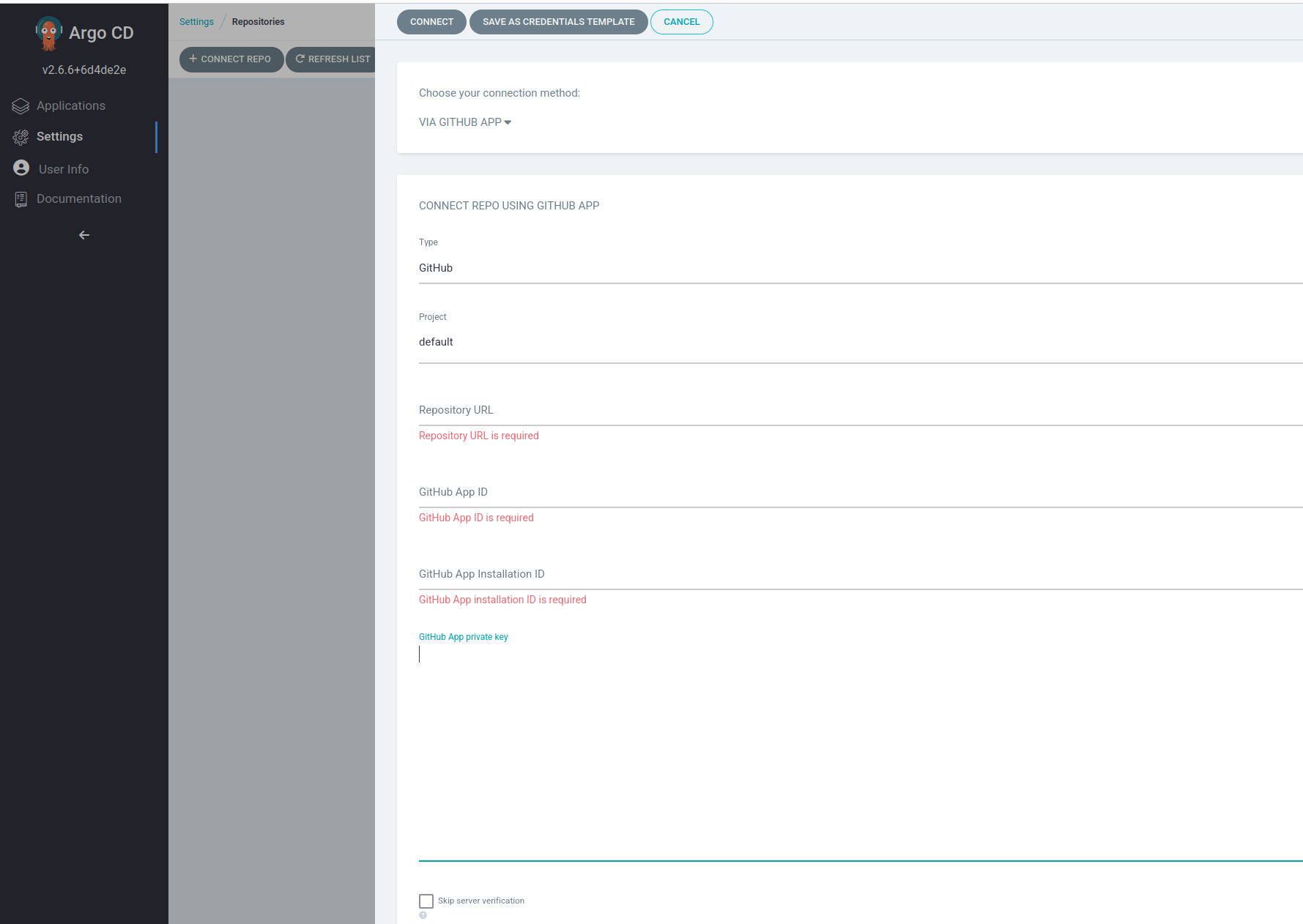
Add Github repo to ArgoCD.
Click on settings then Click on connect Repo , enter github Repository URL, Github App ID and Github App Installation ID and connect.
Stay Tuned!
Be sure to follow and subscribe for more updates and upcoming blogs.


